Can a Bottleneck Calculator Be Wrong? Why Results Differ From Real FPS
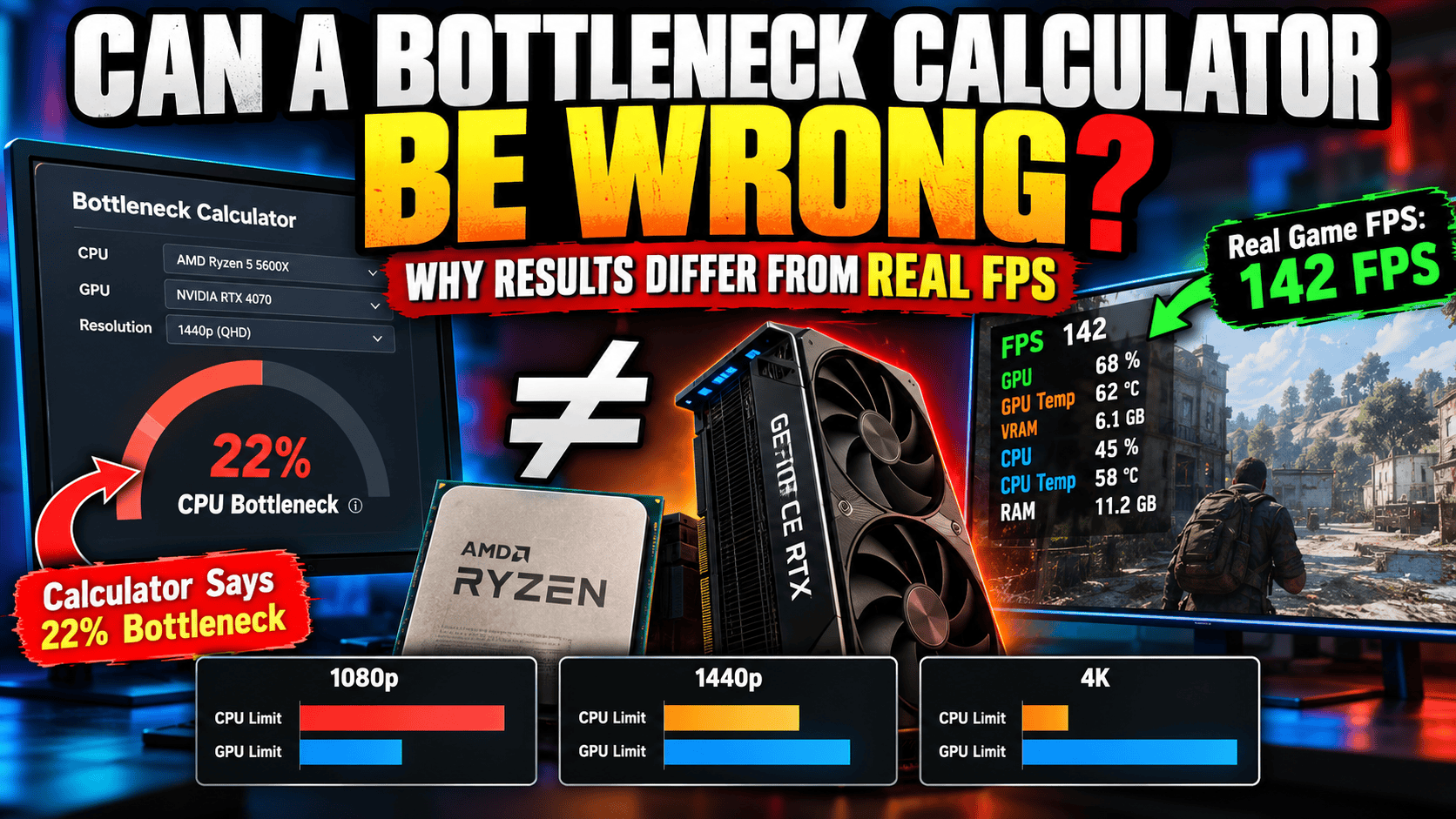
Can a Bottleneck Calculator Be Wrong? Why Results Differ From Real FPS
You enter your CPU and GPU into a bottleneck calculator, click calculate, and get something like “18% CPU bottleneck.”
Then you launch your favorite game.
The GPU sits around 70%. Your CPU is nowhere near 100%. FPS is lower than expected. You start wondering whether the calculator is broken.
This happens more often than you might think.
The problem usually isn’t that the calculator is completely useless. The bigger issue is that a bottleneck calculator is trying to simplify something that is heavily dependent on the game, resolution, graphics settings, drivers, memory, cooling, background processes, and even the particular scene being rendered.
A PC does not have one permanent bottleneck percentage.
The limiting component can change from one game to another, from one resolution to another, and sometimes from one part of a game to another.
That is why a calculator result and your actual FPS can look very different.
What Does a Bottleneck Calculator Actually Tell You?
A bottleneck calculator is best treated as a rough estimate of hardware balance, not an FPS benchmark.
It looks at a combination such as:
- CPU model
- GPU model
- sometimes RAM
- resolution
- gaming workload
- relative hardware performance
It then estimates which component is more likely to limit the system.
That’s useful when you’re choosing parts.
For example, if someone asks whether pairing an older entry-level CPU with a very powerful graphics card makes sense, a calculator can provide a quick warning that the CPU may hold the GPU back in some workloads.
But there is a major difference between saying:
“This CPU may limit this GPU in some games.”
and saying:
“Your PC has a 23% bottleneck.”
The second statement sounds much more precise than the underlying calculation really is.
There is no universal 23% performance limit that follows your PC around.
Your system doesn’t know what the calculator predicted.
The game engine decides what happens when you actually press Play.
Why Your FPS Can Be Different From the Calculator
Imagine two PCs with exactly the same CPU and GPU.
One player runs an esports game at 1080p with low settings.
Another plays a demanding open-world game at 1440p Ultra with ray tracing.
Both systems can have completely different CPU and GPU utilization.
The first system may be heavily CPU-limited because the GPU can render frames extremely quickly.
The second may be heavily GPU-limited because every frame contains much more graphical work.
Nothing about the physical hardware changed.
Only the workload changed.
That’s the part many simple bottleneck calculators cannot fully capture.
A Bottleneck Is Not a Permanent Condition
This is probably the most important thing to understand.
Your PC doesn’t simply have a “CPU bottleneck” or “GPU bottleneck.”
It has a current performance limit under a particular workload.
Suppose your RTX-class GPU is running a game at 1440p Ultra.
If the GPU is working at 98–99% while the CPU has plenty of headroom, the GPU is doing most of the limiting.
Drop the resolution to 1080p and lower several graphics settings.
The GPU now has less work.
It may suddenly start producing frames faster than the CPU can prepare them.
You have shifted the workload toward the CPU.
The same computer can therefore behave like this:
| Scenario | Likely Limit |
| 1080p Low | CPU more likely |
| 1080p Ultra | CPU or GPU depending on game |
| 1440p High | Often GPU |
| 1440p Ultra + RT | Usually more GPU-heavy |
| 4K Ultra | Usually GPU-heavy |
| 4K with aggressive upscaling | CPU can become more relevant |
These aren’t hard rules.
They’re starting points.
The actual game decides.
CPU Bottleneck vs Resolution
Resolution is one of the easiest ways to change the balance between your CPU and GPU.
At 1080p, the GPU has fewer pixels to process.
If you have a powerful graphics card, it can finish that work very quickly.
The CPU may then become the component holding back frame production.
Move to 1440p and the GPU has significantly more pixels to process.
Move again to 4K and the graphical workload becomes much heavier.
That’s why reviewers often use 1080p when testing CPU gaming performance.
They’re deliberately creating conditions where CPU differences become easier to see.
A 2026 investigation by Tom’s Hardware demonstrated exactly how complicated this relationship can become. Its testing used an RTX 4080 Super and several CPUs across Cyberpunk 2077, Spider-Man 2, Microsoft Flight Simulator 2024, Doom: The Dark Ages and The Last of Us Part One. The results showed much clearer CPU scaling at lower resolutions, while higher-resolution workloads often became more GPU-limited.
That doesn’t mean the CPU suddenly becomes irrelevant at 4K.
It means the GPU is usually doing so much work that CPU differences have less room to affect the final frame rate.
GPU Bottleneck vs Resolution
Now reverse the situation.
Imagine a relatively modest CPU paired with a strong graphics card.
At 1080p Low, the GPU might be capable of rendering hundreds of frames per second.
The CPU may struggle to prepare them quickly enough.
At 4K Ultra, however, the GPU has to process four times as many pixels as 1080p.
Add high-quality shadows, reflections, volumetric effects and ray tracing, and the graphics card becomes much busier.
The result can be completely different.
The CPU hasn’t become faster.
The GPU hasn’t become slower.
The workload has simply moved.
That’s why judging a CPU/GPU combination from a single resolution can be misleading.
Why Bottleneck Percentages Can Be Misleading
Let’s say a calculator gives you this result:
CPU Bottleneck: 15%
It is tempting to interpret that as:
“I’m losing exactly 15% of my FPS.”
That’s generally not how you should read it.
The percentage is an estimate based on the calculator’s model.
It isn’t a universal measurement of lost FPS.
For example, your actual results could look something like this:
| Game | Resolution | FPS | Main Limit |
| Competitive shooter | 1080p Low | 220 FPS | CPU |
| AAA game | 1080p High | 125 FPS | Mixed |
| AAA game | 1440p High | 105 FPS | GPU |
| Ray-traced game | 1440p Ultra | 68 FPS | GPU |
| Heavy AAA game | 4K Ultra | 48 FPS | GPU |
The same CPU and GPU are being used in every row.
There isn’t one bottleneck percentage that explains all five results.
Real FPS Example: Why CPU Scaling Changes
A useful modern example comes from CPU testing in Gears of War: E-Day.
Tom’s Hardware found unusually strong CPU scaling in this game. At 1080p with the High preset, its Ryzen 7 9800X3D was about 42% faster than the Ryzen 5 7600X in the tested scenario. At higher graphical settings and resolutions, the gap narrowed as the GPU became more dominant.
That’s a perfect demonstration of why a calculator cannot give you the complete story.
If you only looked at the CPU and GPU specifications, you wouldn’t know how strongly that particular game scales with CPU performance.
The game engine matters.
The settings matter.
The resolution matters.
The test scene matters.
FPS Scaling by CPU
CPU scaling is easiest to see when the GPU isn’t the main limitation.
Consider this simplified example using the same powerful GPU:
| CPU | 1080p Competitive Game | 1440p | 4K |
| Older 6-core CPU | 150 FPS | 135 FPS | 105 FPS |
| Modern 6-core CPU | 210 FPS | 175 FPS | 110 FPS |
| High-end gaming CPU | 260 FPS | 190 FPS | 112 FPS |
These figures are illustrative rather than a single laboratory benchmark. The important part is the pattern.
At 1080p, the CPU difference can be enormous.
At 4K, the difference can become tiny because the GPU is doing most of the work.
That’s why spending a lot more money on a CPU doesn’t automatically make sense for someone gaming at 4K.
If the GPU is already limiting performance, a faster processor may produce almost no visible FPS improvement.
FPS Scaling by GPU
The same idea works in reverse.
Imagine a modern gaming CPU paired with three different GPUs.
| GPU Class | 1080p | 1440p | 4K |
| Mid-range GPU | 90 FPS | 65 FPS | 38 FPS |
| Upper-mid-range GPU | 145 FPS | 105 FPS | 62 FPS |
| High-end GPU | 175 FPS | 145 FPS | 92 FPS |
Again, these are illustrative examples rather than claims of a specific test system.
Notice something interesting.
The high-end GPU doesn’t necessarily scale perfectly at 1080p.
That’s because the CPU eventually becomes the limit.
At 4K, however, GPU differences become much easier to see.
This is one reason GPU reviews commonly include multiple resolutions.
One number doesn’t tell the whole story.
What Happens When You Upgrade the GPU?
This is where bottleneck calculators can actually become useful.
Suppose you currently have:
Ryzen 5-class CPU + mid-range GPU
You upgrade the GPU to something substantially faster.
You might expect FPS to increase dramatically.
But imagine your game was already CPU-limited at 1080p.
The new graphics card now finishes its work faster and spends more time waiting for the CPU.
Your FPS might go from:
150 FPS → 170 FPS
instead of:
150 FPS → 250 FPS
That doesn’t mean the new GPU is defective.
It means the CPU was already setting the performance ceiling.
At 4K, however, the same GPU upgrade could produce a much larger improvement because the workload shifts toward the graphics card.
Expected FPS Gain After a GPU Upgrade
Here’s a simplified example:
| Upgrade | 1080p CPU-Limited | 1440p GPU-Limited | 4K GPU-Limited |
| GPU +20% faster | +5–10% | +15–20% | +18–22% |
| GPU +40% faster | +10–20% | +30–38% | +35–40% |
| GPU +70% faster | +15–25% | +50–65% | +55–70% |
These ranges are planning examples, not universal benchmark results.
Game engines can produce very different results.
Ray tracing, VRAM capacity, CPU overhead, memory speed, upscaling and driver behavior can all change the outcome.
Expected FPS Gain After a CPU Upgrade
The reverse happens with processor upgrades.
If your GPU is already working close to full utilization, replacing your CPU with a much faster model may barely change average FPS.
But if your CPU is limiting the game, the improvement can be substantial.
| Situation | CPU Upgrade Potential |
| 1080p competitive gaming | Often significant |
| 1080p high-refresh gaming | Potentially significant |
| 1440p GPU-heavy gaming | Often smaller |
| 4K native gaming | Usually smaller |
| CPU-heavy simulation | Can remain significant |
| Large open-world game | Can be significant |
The key word is potential.
Don’t buy a CPU upgrade because a calculator says “bottleneck.”
Look at your actual workload.
The 1080p vs 1440p Trap
One of the most common mistakes is assuming that a CPU benchmark at 1080p tells you exactly what you’ll experience at 1440p.
It doesn’t.
But there is another trap.
People sometimes assume:
“I’m playing at 1440p, so my CPU doesn’t matter.”
That isn’t necessarily true either.
Modern upscaling complicates this.
With DLSS, for example, the game can render internally at a lower resolution before reconstructing the final image.
Tom’s Hardware’s 2026 CPU-scaling investigation showed that a 1440p output can still expose substantial CPU scaling when aggressive DLSS settings reduce internal rendering resolution.
For example, its table shows that 1440p output with DLSS Quality uses a lower internal render resolution, while Performance mode reduces it further.
So a PC running:
1440p + DLSS Performance
is not behaving exactly like:
native 1440p
from a workload perspective.
That’s an easy detail to miss.
DLSS Can Make a Bottleneck Look Strange
Here’s a scenario that confuses many gamers.
You have a powerful GPU.
You turn on DLSS.
FPS barely changes.
You lower the DLSS setting again.
FPS still barely changes.
You might think:
“DLSS isn’t working.”
It may be working perfectly.
The GPU workload has been reduced, but the CPU is now limiting the number of frames the game can prepare.
Tom’s Hardware observed this behavior across its CPU/DLSS testing. In CPU-limited scenarios, moving to a lower internal render resolution did not necessarily produce the expected FPS improvement because the CPU had become the limiting factor.
This is one of the strongest reasons to avoid treating a bottleneck calculator’s percentage as a hard FPS prediction.
What About Frame Generation?
Frame Generation makes the situation even more interesting.
NVIDIA’s documentation explains that DLSS Frame Generation can generate additional frames on the GPU and can raise displayed frame rates even in CPU-limited scenarios. NVIDIA demonstrated a Microsoft Flight Simulator example moving from roughly 50 FPS to 100 FPS with DLSS 3.
But there’s an important distinction.
A generated frame is not the same thing as the CPU producing another complete game simulation frame.
Your displayed FPS can rise while the underlying CPU-generated frame rate remains constrained.
That’s why you should look at more than the headline FPS number.
Frame time, latency and frame pacing matter too.
Average FPS Isn’t the Whole Story
Imagine two PCs:
PC A
- 120 FPS average
- 8.3 ms average frame time
- occasional 30 ms spikes
PC B
- 110 FPS average
- more consistent frame delivery
- fewer severe spikes
Which feels smoother?
You can’t answer that from average FPS alone.
This is where 1% lows and frame-time graphs become useful.
A bottleneck calculator generally cannot model every one of those variations.
A benchmark can.
And your own game session can tell you even more.
Why GPU Usage Can Be More Useful Than a Bottleneck Percentage
If you’re trying to diagnose your actual PC, open an overlay such as MSI Afterburner with RivaTuner Statistics Server, or another trusted monitoring tool.
Watch:
- GPU utilization
- CPU utilization
- per-core CPU utilization
- GPU temperature
- CPU temperature
- VRAM usage
- RAM usage
- FPS
- 1% lows
- frame time
- clock speeds
Then play the game normally.
Don’t stare at the numbers while standing in the menu.
Walk into the part of the game where performance normally drops.
That’s where the useful information is.
Don’t Look Only at Total CPU Usage
This is another common mistake.
Someone sees:
CPU usage: 45%
and concludes:
“My CPU isn’t bottlenecking.”
Not necessarily.
A game may heavily use one or two CPU threads while other cores remain relatively idle.
Your overall CPU percentage can therefore look modest even though one important thread is limiting frame production.
This is particularly relevant in high-FPS gaming.
The CPU doesn’t need to reach 100% overall usage before it becomes the limiting component.
A Simple Way to Test Your Own Bottleneck
Try this.
Run the same game scene at:
1080p Low
Then:
1080p Ultra
Then:
1440p Ultra
Then, if your system can handle it:
4K Ultra
Watch what happens.
If FPS barely changes when you lower GPU-heavy settings, you’re probably running into a CPU-side limit.
If FPS changes dramatically when you change resolution or graphics quality, the GPU is probably doing much more of the limiting.
It isn’t a perfect scientific test, but it’s far more informative than staring at one calculator percentage.
The Resolution Test
Here’s a practical example.
Suppose your PC produces:
| Setting | FPS |
| 1080p Low | 155 |
| 1080p Ultra | 150 |
| 1440p Ultra | 143 |
| 4K Ultra | 82 |
That pattern suggests something interesting.
Going from 1080p Low to Ultra barely changes FPS.
Moving to 1440p still doesn’t change much.
But 4K causes a major drop.
The system may have been CPU-limited or mixed-limited at the lower resolutions before the GPU workload became dominant at 4K.
Now compare that with:
| Setting | FPS |
| 1080p Low | 210 |
| 1080p Ultra | 165 |
| 1440p Ultra | 112 |
| 4K Ultra | 58 |
Here, graphics settings and resolution have a much stronger relationship with FPS.
That points more strongly toward GPU limitation.
Common Bottleneck Calculator Mistakes
Mistake 1: Treating the Percentage as FPS Loss
A “20% bottleneck” does not automatically mean you’re losing 20% of your FPS.
That’s one of the biggest misconceptions surrounding these tools.
Think of the result as an estimate of imbalance, not a frame-rate measurement.
Mistake 2: Ignoring the Game
A CPU that struggles in a simulation game might be completely fine in a GPU-heavy single-player title.
A graphics card that performs brilliantly in rasterized games can behave very differently once heavy ray tracing is enabled.
There is no single workload called “gaming.”
Mistake 3: Ignoring Resolution
A CPU/GPU combination that looks questionable at 1080p can be perfectly sensible at 4K.
The opposite can also happen when using aggressive upscaling on a powerful GPU.
Mistake 4: Looking Only at Average FPS
Average FPS hides spikes.
If your game reports 100 FPS but the frame-time graph regularly jumps, the experience can still feel inconsistent.
Check 1% lows when diagnosing stutter.
Mistake 5: Blaming the CPU or GPU Too Quickly
Before buying anything, check:
- temperatures
- clock speeds
- RAM configuration
- XMP/EXPO
- GPU power limit
- driver version
- background applications
- VRAM usage
- game settings
- Windows power settings
A “bottleneck” can sometimes be a configuration problem.
RAM Can Also Change the Result
Memory is often left out of simplified bottleneck discussions.
That’s a mistake.
For example, moving from a poorly configured single-stick memory setup to properly configured dual-channel RAM can change CPU-limited gaming performance.
Memory speed and latency can matter too, particularly in games that are sensitive to CPU and memory performance.
The effect isn’t identical across every platform or game.
That’s exactly the point.
Real gaming performance contains more variables than a CPU-versus-GPU percentage can represent.
Thermal Throttling Can Look Like a Bottleneck
Imagine you have a high-end processor.
On paper, it should deliver excellent gaming performance.
But the cooler isn’t handling the workload properly.
The CPU reaches its thermal limit and reduces its clock speed.
Now the GPU may sit at 70–80% utilization.
A quick glance might make you think:
“My CPU is bottlenecking my GPU.”
Technically, the CPU may indeed be limiting the frame rate.
But replacing the CPU isn’t necessarily the right solution.
Fixing the cooling problem could restore the performance you already paid for.
The same applies to a GPU that is overheating or hitting power limits.
Cost vs Performance: Should You Upgrade?
This is where I would stop looking at the calculator and start looking at your actual gaming goals.
Suppose you have:
Ryzen 5 + RTX-class mid-range GPU
and you’re playing at:
1440p / 165 Hz
If your games are running around 100–120 FPS and the GPU is near 99% utilization, buying a much faster CPU may not transform your experience.
A GPU upgrade could make more sense.
But if you’re playing competitive games at 1080p and trying to push 200–300 FPS while the GPU sits at 60–70%, the CPU becomes a much more interesting upgrade target.
Your monitor matters too.
If you have a 75 Hz display, going from 130 FPS to 220 FPS isn’t necessarily the best place to spend your money.
If you have a 240 Hz monitor, CPU performance becomes much more relevant in games capable of reaching those frame rates.
A Better Upgrade Decision Table
| What You See | Likely Upgrade Direction |
| GPU 95–100%, low FPS | Consider GPU |
| GPU 50–70%, CPU thread saturated | Consider CPU |
| GPU VRAM full | Consider higher-VRAM GPU |
| CPU overheating | Fix cooling first |
| GPU overheating | Fix GPU cooling/airflow |
| RAM running single-channel | Fix memory configuration |
| Low FPS only in one game | Investigate the game first |
| FPS improves strongly at lower resolution | Likely GPU limitation |
| FPS barely changes at lower resolution | CPU limitation may be present |
| Severe 1% lows | Investigate CPU, RAM, storage and game engine |
It’s not a replacement for proper benchmarking.
It is simply a much better starting point than a single percentage.
Why Different Bottleneck Calculators Give Different Results
This is another thing that makes people suspicious.
You enter the same CPU and GPU into three websites.
One says:
8%
Another says:
17%
Another says:
CPU bottleneck
Which one is correct?
The reason can be surprisingly simple.
Different calculators use different assumptions.
They may use:
- different hardware performance databases
- different games
- different resolutions
- different weighting systems
- different definitions of a bottleneck
- different CPU/GPU performance estimates
- different update schedules
There isn’t one universally accepted formula for calculating a gaming bottleneck percentage.
So disagreement between calculators isn’t automatically evidence that one of them is broken.
Why Real Benchmarks Still Win
If you want to know how a CPU and GPU combination actually performs, a benchmark using the same game, settings and hardware is much more useful.
That’s why professional hardware reviews test CPUs and GPUs across multiple games.
Tom’s Hardware’s 2026 CPU/DLSS investigation is a good example. It used a controlled RTX 4080 Super test platform and multiple CPUs and games specifically to investigate how CPU scaling changed with resolution and DLSS modes.
The result was not one universal answer.
Different games behaved differently.
That’s exactly what you should expect from PC gaming.
The Best Way to Use a Bottleneck Calculator
I wouldn’t throw these calculators away.
I would simply use them for the job they’re actually good at.
Use one when:
Planning a new PC
You can quickly check whether a proposed CPU/GPU combination deserves further investigation.
Comparing upgrades
If you’re considering a much faster GPU, a calculator can warn you that your existing CPU may limit it in certain workloads.
Checking an unfamiliar combination
If you’ve never paired particular hardware before, it can give you a starting point.
But don’t use it as:
An FPS prediction
A guarantee of GPU utilization
A measurement of exact FPS loss
Proof that you need a CPU upgrade
That’s where people get into trouble.
A Better Mental Model
Instead of thinking:
“My PC has a 15% bottleneck.”
Think:
“Under this workload, this component may become the limiting factor.”
That small change in thinking makes PC performance much easier to understand.
Your PC is a chain.
The frame has to pass through game logic, CPU processing, driver work, rendering commands, GPU processing, memory and display output.
Whichever part takes longest can become the limiting stage.
Change the workload and the slowest stage can change.
Screenshot: What Your Monitoring Overlay Should Look Like
Suggested screenshot placement: Add a screenshot here showing MSI Afterburner/RivaTuner while playing a real game.
The screenshot should ideally show:
- FPS
- 1% low
- GPU utilization
- GPU temperature
- CPU utilization
- CPU temperature
- RAM usage
- VRAM usage
- CPU/GPU clock speeds
A real gameplay monitoring screenshot is much more useful for readers than a generic stock PC image.
Screenshot: Bottleneck Calculator Result vs Real Game
Suggested screenshot placement: Show your calculator producing a result for a specific CPU/GPU combination, followed by an in-game monitoring overlay using the same hardware.
This creates a useful side-by-side comparison:
Calculator prediction → Real hardware behavior
That is exactly what readers searching for this topic want to understand.
Benchmark Chart: CPU vs Resolution
A useful chart for this article would look like this:
Relative CPU Influence
1080p ████████████████████
1440p █████████████
4K ███████
CPU influence
This is a conceptual chart, not a universal benchmark.
CPU influence can remain high at 1440p or 4K in CPU-heavy games, especially with aggressive upscaling.
Benchmark Chart: GPU vs Resolution
Relative GPU Workload
1080p ███████
1440p █████████████
4K █████████████████████
GPU workload
Again, this represents the general relationship rather than a specific graphics card benchmark.
The actual numbers depend heavily on the game and settings.
Real Example: Why One Game Can Behave Differently
Consider two games running on the same PC.
Game A: Competitive Shooter
1080p Low:
240 FPS
GPU utilization:
65%
CPU:
High utilization on key threads
This looks CPU-limited.
Now increase the graphics settings.
FPS drops to 180.
GPU utilization rises toward 95%.
You’ve shifted more of the workload onto the graphics card.
Game B: Ray-Traced AAA Game
1080p Ultra:
100 FPS
GPU utilization:
98%
Move to 1440p:
75 FPS
Move to 4K:
45 FPS
Here, the GPU is clearly doing much more of the work.
Same PC.
Different game.
Different bottleneck behavior.
What If Your Calculator Says “No Bottleneck” But FPS Is Bad?
This is where you should stop thinking about the calculator.
Check the actual system.
First, make sure the game is using the correct GPU.
Then check GPU utilization.
Check CPU per-core utilization.
Check temperatures and clock speeds.
Check RAM configuration.
Check VRAM usage.
Check whether the game has a known performance problem.
Check whether ray tracing, path tracing or another demanding feature is enabled.
Check your upscaling and frame-generation settings.
Also check whether you are looking at average FPS or 1% lows.
If the problem only happens in one game, don’t immediately blame the hardware.
The game itself may be the variable.
What If Your Calculator Says “Huge Bottleneck” But FPS Is Fine?
That’s possible too.
Suppose the calculator warns that your CPU is weak compared with your GPU.
But you’re playing at 4K and getting the FPS you want.
Then the theoretical imbalance may not matter much to you.
If the game runs smoothly, your 1% lows are acceptable, temperatures are under control and you’re happy with the frame rate, there may be no reason to upgrade.
This is one of the most important lessons in PC building:
A theoretical bottleneck is not automatically a real-world problem.
When Should You Actually Worry About a Bottleneck?
I’d pay attention when the bottleneck produces a result you actually dislike.
For example:
- FPS is below your target
- GPU is sitting underutilized
- CPU threads are saturated
- 1% lows are poor
- frame times are inconsistent
- upgrading the GPU produced almost no improvement
- your CPU is preventing your GPU from reaching its potential
- your monitor’s refresh rate isn’t being utilized
If you’re getting the performance you want, a calculator warning isn’t necessarily a problem worth spending money on.
How Much CPU Is Enough for Gaming?
There isn’t a magic CPU specification that guarantees no bottleneck.
For most modern gaming systems, the practical target is a capable modern processor with enough cores, strong per-core performance and a sensible platform.
But your choice should depend on the GPU and the games you actually play.
A high-end GPU paired with a budget CPU may make sense for certain 4K builds.
The same CPU/GPU combination may be less attractive for a 1080p 240 Hz competitive gaming machine.
That’s why PC building works better when you start with the intended workload rather than a generic “balanced build” rule.
The Bottom Line
So, can a bottleneck calculator be wrong?
Yes.
But “wrong” isn’t always the best way to describe what is happening.
Most calculators are trying to estimate a complicated relationship with a simplified model.
Real games are much messier.
Your CPU and GPU don’t operate in isolation. The game engine, resolution, graphics settings, memory, drivers, cooling, background processes, upscaling and frame-generation technology all influence the final result.
The same PC can be CPU-limited at 1080p, GPU-limited at 4K, and somewhere in between at 1440p.
Even DLSS can change the balance because lowering the internal rendering workload can expose CPU limitations. Recent testing has demonstrated that this effect can remain significant at 1440p and in some 4K upscaling scenarios.
So use a bottleneck calculator as a planning tool, not a promise of FPS.
If you want to know what your PC is actually doing, measure it.
Watch GPU utilization.
Check CPU threads.
Look at frame time.
Compare 1% lows.
Test different resolutions.
And most importantly, test the games you actually play.
That’s far more useful than arguing over whether a calculator should have said 12% or 18%.
For PC building and upgrades, the real question isn’t:
“Does my PC have a bottleneck?”
It’s:
“What is limiting my performance right now, and would upgrading that part actually improve the way I play?”
That is the number worth chasing.